I stumbled across this hillarious little flash game. It's basicle just about typing as many 5 letters word as fast as you can during one minute. It's harder than it seems, but still very entertaining.
Give it a go, and compete with your friends to see who is the Champion of Speedtyping.
Play Fast Typer
Sunday, May 1, 2011
How To Verify a non-payment iTunes Apple Store Account
Many people, also me, has been in the situation where they created an None-payment iTunes Store Account, but they couldnt get it Verifyed. There is however a VERY simple fix to this.
When you create an account like this, you will come to the opition where you have to choose a way for payment. There is possible to choose "None".
The problem comes later, when you are going to Verify the account from the email link. Many people are not able to do that, and here is the fix.
I sent Apple an email about this issue, and they explained the issue.
Apple requires that you provide the following for security reasons:
- The billing address listed on the account
- Your permission to complete the verification process for your iTunes Store account
This basicly means you have to add an Shipping Adress to your iTunes store account.
1. Go to the Apple ID website and login to your ID.
2. Go to the Adresses section, and put in a Default shipping adress.
3. Now save, and try to Verify with the link in the email. It should now work.
Ive also got an video explaining this.
Watch it Here ( Youtube)
When you create an account like this, you will come to the opition where you have to choose a way for payment. There is possible to choose "None".
The problem comes later, when you are going to Verify the account from the email link. Many people are not able to do that, and here is the fix.
I sent Apple an email about this issue, and they explained the issue.
Apple requires that you provide the following for security reasons:
- The billing address listed on the account
- Your permission to complete the verification process for your iTunes Store account
This basicly means you have to add an Shipping Adress to your iTunes store account.
1. Go to the Apple ID website and login to your ID.
2. Go to the Adresses section, and put in a Default shipping adress.
3. Now save, and try to Verify with the link in the email. It should now work.
Ive also got an video explaining this.
Watch it Here ( Youtube)
How To Play Subtitle-files along with a Videofile
Whenever you have downloaded a movie, or a TV-series episode, it usually dont come along with subtitles. This can be a little bit annoying for some, but there is a very easy way to add subtitles.
1. The first thing you need is a plugin for Windows that allows you to actually play the subtitles you get with your video. Its called Vobsub, its 100% free, small and you can Download it Here
2. After you got Vobsub installed, locate the uploader of the videofile you want the subtitle for. When you have downloaded a movie, or an episode, the uploader usually has a nickname. Fint that nickname. Its placed after the Title, year, and format.
3. This is why you need the nickname. Many different uploaders can have added the same movie, and they are different in lenght. The subtitle must match the correct uploader, or else it wont be syncronized. So now that you got your nickname, its time to find the subtitles for it. There are many webpages that you can locate subtitles on. I would recommend using Subscene.com
Search for your movie, and then find the correct uploader version, in your language. ( Note that there are mostly english and arbabian subtitles, so you can expect to find your preferred language all the time.)
4. Now that you downloaded your subtitles, (.srt, .sub or any filetype like that), its time to play it along with your video. In order to do that, you must take the subtitle file you downloaded, and put it in the same folder as the video file. Then rename the files, to that they both have the same name, and then open the video file in any mediaplayer.
Enjoy!
The Vobsub icon will appear on the taskbar when its active. If it don't appear, you have done something wrong.
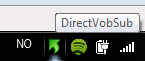
I also got an youtube video explaing this.
Watch it Here
1. The first thing you need is a plugin for Windows that allows you to actually play the subtitles you get with your video. Its called Vobsub, its 100% free, small and you can Download it Here
2. After you got Vobsub installed, locate the uploader of the videofile you want the subtitle for. When you have downloaded a movie, or an episode, the uploader usually has a nickname. Fint that nickname. Its placed after the Title, year, and format.
3. This is why you need the nickname. Many different uploaders can have added the same movie, and they are different in lenght. The subtitle must match the correct uploader, or else it wont be syncronized. So now that you got your nickname, its time to find the subtitles for it. There are many webpages that you can locate subtitles on. I would recommend using Subscene.com
Search for your movie, and then find the correct uploader version, in your language. ( Note that there are mostly english and arbabian subtitles, so you can expect to find your preferred language all the time.)
4. Now that you downloaded your subtitles, (.srt, .sub or any filetype like that), its time to play it along with your video. In order to do that, you must take the subtitle file you downloaded, and put it in the same folder as the video file. Then rename the files, to that they both have the same name, and then open the video file in any mediaplayer.
Enjoy!
The Vobsub icon will appear on the taskbar when its active. If it don't appear, you have done something wrong.
I also got an youtube video explaing this.
Watch it Here
Subscribe to:
Comments (Atom)


